Installation guide
Load a style onto your camera
Picture Styles install with Canon's free EOS Utility 3. It takes just a few minutes to install. Follow the instructions below.
What you'll need
- Your Canon camera, charged
- Its USB cable
- A Mac or Windows computer
- Your .pf3 Picture Style file
Install EOS Utility 3
It's Canon's free camera software for Mac and Windows. On Canon's support site, choose your camera model, open Software & Drivers and download EOS Utility 3.
Outside the US? Use your regional Canon support site.
On a Mac and can't find it? Choose an older macOS version in the operating system menu; EOS Utility 3 is usually listed there.
Open EOS Utility 3
Launch it on your computer and leave it open. It waits quietly until a camera is connected.
Connect your camera
Plug your camera into your computer with its USB cable, then switch the camera on. EOS Utility finds it on its own and shows your camera's name at the top of the window.
Not detected? Try another cable or port, and close other photo apps that might grab the camera.
Register the style
Follow these steps to register one style, or up to three at a time by filling each User Def. tab before you click OK. The screenshots show an EOS RP on a Mac; other models and Windows look almost the same.

aCamera settingsChoose it once EOS Utility shows your camera. 
bRegister Picture Style FileOpens the registration window. 
cPick a slot, then the folderChoose User Def. 1, 2 or 3, click the folder icon and select your .pf3 file. 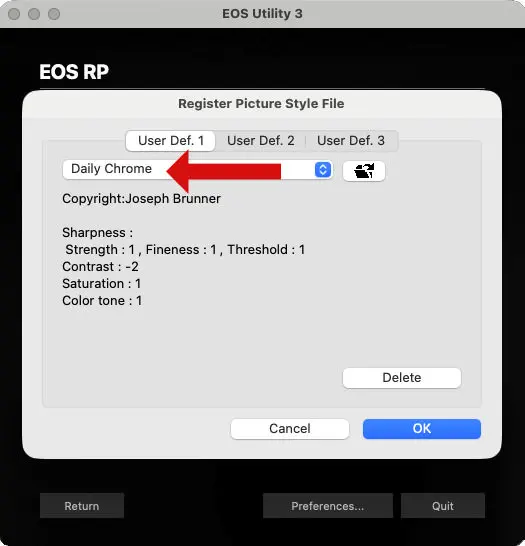
dCheck the name, click OKYour style's name appears in the menu. Adding more? Repeat step c in the other tabs first. 
eQuitThe style is now saved on your camera.
Shoot with it
Disconnect the camera, open its Picture Style menu and choose the User Def. slot you used. Your style's name shows in that slot, and it applies to your JPEGs and the preview on screen.
Three slots, swap any time. Your camera holds three User Def. styles. Registering a new one replaces what's in that slot, and your .pf3 files stay on your computer.
PowerShot install
Not every PowerShot supports Picture Styles. If your camera's menu has a Picture Style setting with User Def. slots, you're set.
Before you start
- Your .pf3 file, saved on your computer.
- Canon's software for your model: CameraWindow, EOS Utility or the Picture Style File Registration Tool, from Canon's support site under Software & Drivers.
- Your camera's USB cable. Many PowerShot models use Micro-USB.
Connect your camera
Plug it into your computer with its USB cable and turn it on.
Open the software
Launch CameraWindow, EOS Utility or the Picture Style File Registration Tool. If it asks, confirm your camera model.
Open the registration tool
Click Camera Settings (the name can vary slightly by model), then Register Picture Style File. Using the Picture Style File Registration Tool? This step doesn't apply; go to step 04.
Pick a slot and your file
Choose User Def. 1, 2 or 3, click the folder icon, select your .pf3 file and click Open.
Save it to the camera
Click OK. Then close the software, turn the camera off and unplug the cable.
Shoot with it
Turn the camera on, press MENU or Q, open Picture Style and choose the User Def. slot you used.
Now go shoot something
Load a style once and every frame comes out finished, straight from the camera.